Introduction
An amazing Engine created by three university students from CITM-UPC for the subject Game Engines. With this engine you can create and transform 3D objects and your imported FBX, load textures and much more! With the last release you can now include UI Components, such as Buutons, Sliders, Input Boxes, Images and Checkboxes!
Team Members
Adrián Aroca (adrianam4)

David Lira (davidlira19)
Unai Díaz (unaidiaz)
We all have been always working together. So, there isn’t anything that any member has made on his own. All have been made by all of us, like a team.
Main Core Sub-Systems
- Free Camera Movement
- Create primitives (Cube, Pyramid, Cyilinder and Sphere)
- Load your FBXs (Drag and Drop)
- Load your Textures (Drag and Drop)
- Transform objects (Scale, Position and Rotation) with the Inspector Menu
- Enable/Disable wireframe for the objects
- Enable/Disable normals for the objects
- Enable/Disable bounding boxes (AABB) for the objects
- Configuration Menu with many options such as a Frame Limiter, Window Size Configuration, Input and Hardware Info, etc.
- View and manage your objects in an Hierarchy
- A Console that shows your actions on the Engine
- Import your FBX, Textures and Scenes (Resource Manager)
- Select Objects by Clicking on them (Mouse Clicking)
- Game Mode (Time Management)
- Create Game Cameras and move them
- Loading Optimization (Frustrum Culling)
- Live Object Transform (Guizmos)
- Load and Save your own Scenes (.chaos Format)
- New Texture Filters
- Own File Format (Textures and Models)
User Interface Sub-Systems
- Create Buttons
- Create Checkboxes
- Create Sliders
- Create Images
- Create Input Box
- Change UI Components Colors, Size, Position, and Rotation
- Edit UI Components Text
- State Detection with Mouse Input
- State Detection with Keyboard Input
Controls
- ESC: Exit the Engine
- WASD: Camera Movement
- Q: Camera Up
- E: Camera Down
- F: Focus the Camera Around the Selected Object
- MOUSE WHEEL: Zoom In / Zoom Out
- RIGHT MOUSE BUTTON: Camera Orientation
- LEFT MOUSE BUTTON: Select Object
- LEFT MOUSE BUTTON + LEFT ALT: Orbit Camera
- LEFT SHIFT: Duplicates Camera Movement
- P + Select Object: Makes the First Selected Object Children of the Second One
- P: Object Selected = NULL
- SUPR: Deletes Selected Game Object
- F1: Show Options Window (In Game Mode)
- F2: Enable/Disable Cull Face
- F3: Enable/Disable Lightning
- F4: Enable/Disable Color Material
- F5: Enable/Disable Textures
- BUTTON (1): Translation Guizmo
- BUTTON (2): Rotation Guizmo
- BUTTON (3): Scale Guizmo
- TAB: Select the following UI Game Object on Game Mode
- ENTER: Call OnClick() UI Component Function from the Selected UI Game Object
Detailed Explanation of our Sub-System (User Interface)
The last assignment that we choose for our Engine, was “User Interface (UI)”. For doing this, we have created a UI Module for managing all the UI Components that we needed to create. Here, we manage the Draw, Update, and other core functionalities that all the UI Components contain.
Talking about the UI Components, we have created the following ones:
- Canvas: Contais other UI Components inside him, and it acts like a draggable window that moves himself and all their children.
- Button: Is a standard button that has different States (Disabled, Normal, Selected, Focused, Pressed) and can be pressed and it will descend an action.
- Slider: Is a standard slider with the same states that the button. It has a value, a min value and a max value, and by dragging inside him, you will change the current value between the min value and the max value.
- Check Box: Is a standard Check Box with the same states that the button and the slider. It is just a boolean that change his value when it’s pressed. This one can be used for activate/deactivate any game option.
- Input Box: Is a standard Input Box with the same states that all the previous UI Components. When you click over his box, you can edit the text in real time. It could be used to introduce, for example, the name of the player thar will play the game.
- Image: It’s just a simple image that you can add in the UI. Doesn’t have any other functionality.
Moreover, we have created other type of transform component, exclusive for the UI Components. And this is the Transform2D component. Is very similar to his 3D component. But this one fits better and makes the work easier for managing the UI Elements.
Editor Mode
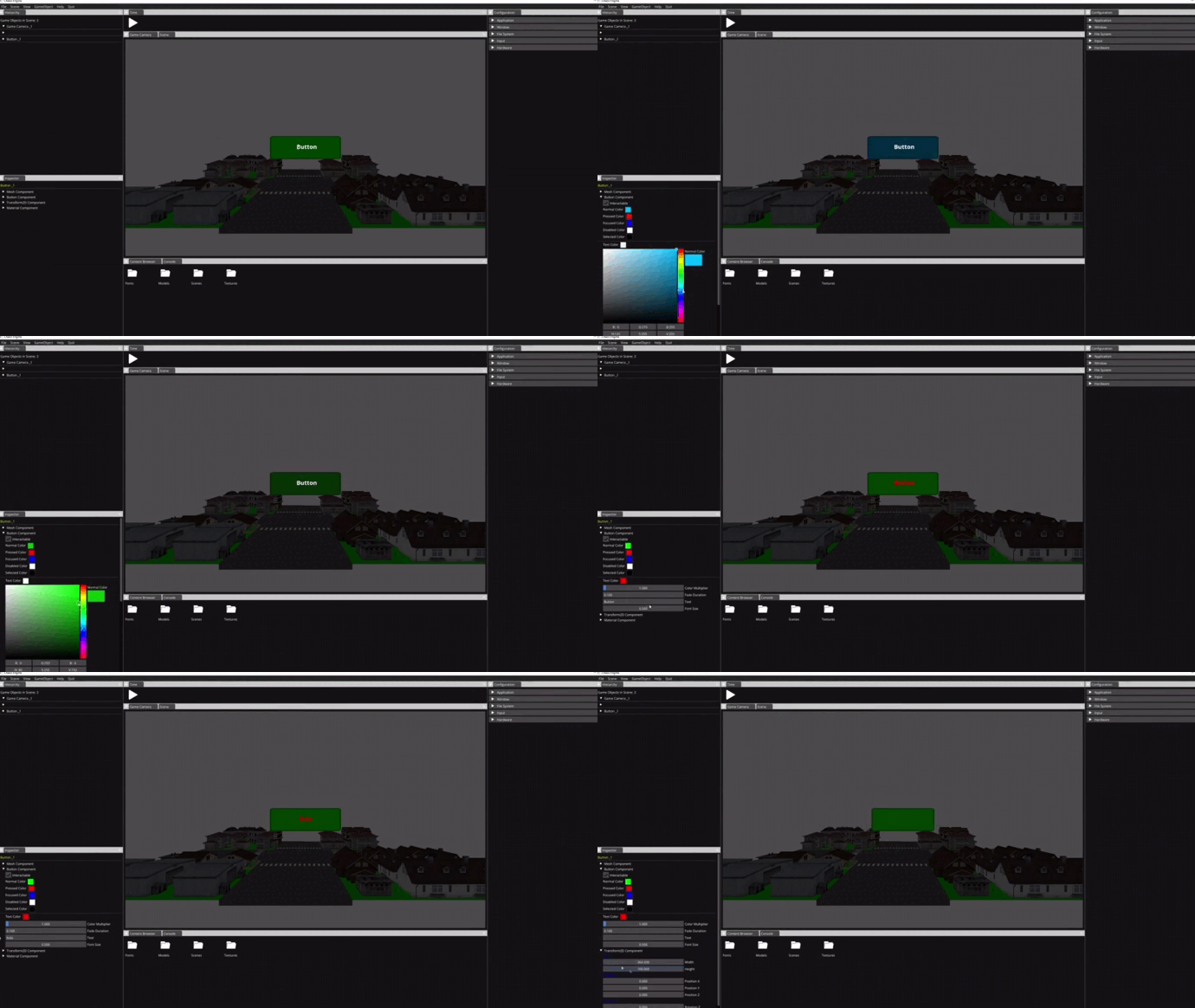
Game Mode
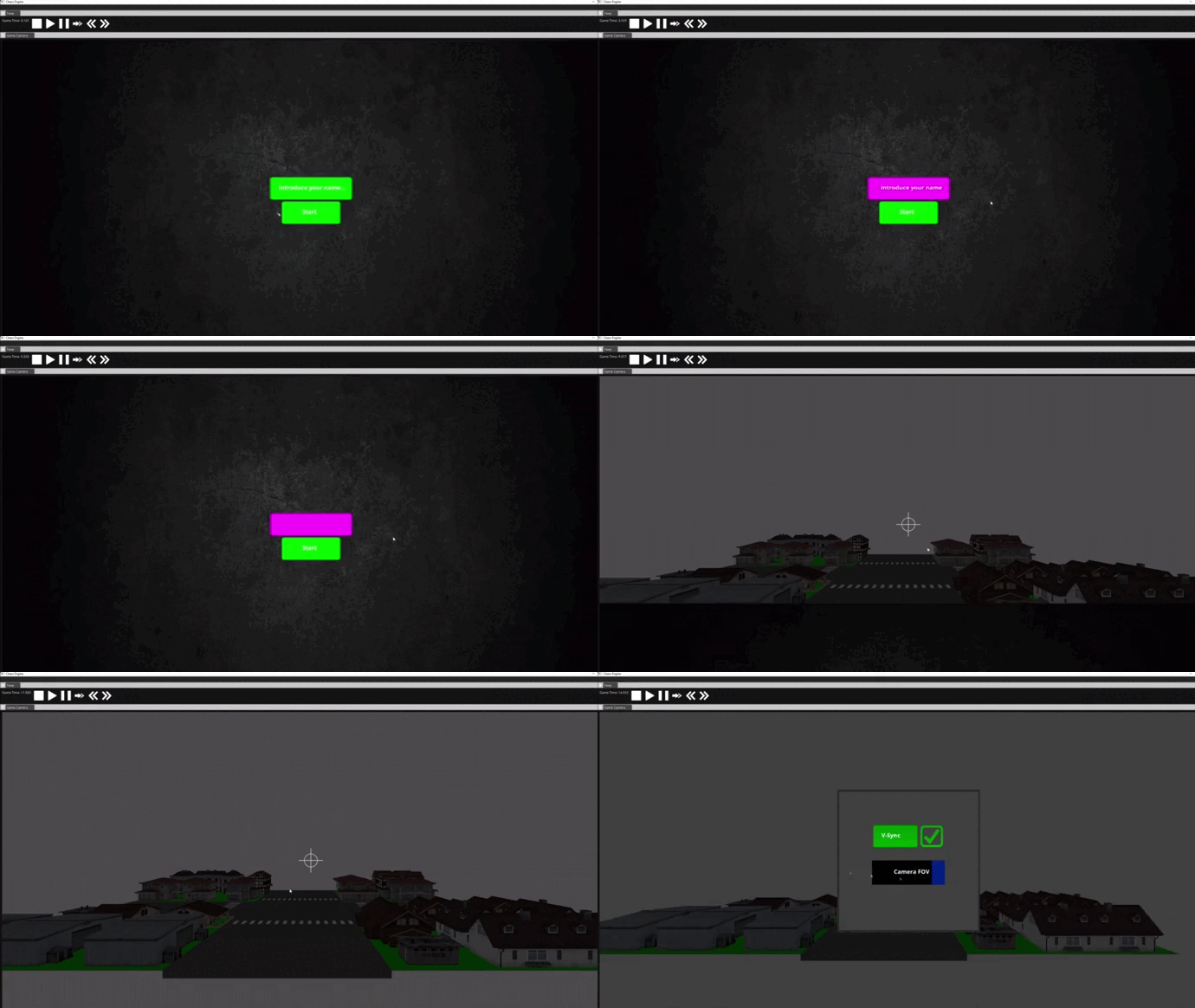
Engine Video Example
Repository and Downloads
License
MIT License
Copyright (c) 2021 adrianam4, davidlira19 and unaidiaz
Permission is hereby granted, free of charge, to any person obtaining a copy of this software and associated documentation files (the “Software”), to deal in the Software without restriction, including without limitation the rights to use, copy, modify, merge, publish, distribute, sublicense, and/or sell copies of the Software, and to permit persons to whom the Software is furnished to do so, subject to the following conditions:
The above copyright notice and this permission notice shall be included in all copies or substantial portions of the Software.
THE SOFTWARE IS PROVIDED “AS IS”, WITHOUT WARRANTY OF ANY KIND, EXPRESS OR IMPLIED, INCLUDING BUT NOT LIMITED TO THE WARRANTIES OF MERCHANTABILITY, FITNESS FOR A PARTICULAR PURPOSE AND NONINFRINGEMENT. IN NO EVENT SHALL THE AUTHORS OR COPYRIGHT HOLDERS BE LIABLE FOR ANY CLAIM, DAMAGES OR OTHER LIABILITY, WHETHER IN AN ACTION OF CONTRACT, TORT OR OTHERWISE, ARISING FROM, OUT OF OR IN CONNECTION WITH THE SOFTWARE OR THE USE OR OTHER DEALINGS IN THE SOFTWARE.